
Programming Hotmoka
A tutorial on Hotmoka and smart contracts in Takamaka
7.2 Hotmoka blockchains based on Mokamint (proof of space)
Hotmoka can run on top of a generic engine for proof of space consensus, called Mokamint [16]. The latter implements the networking and consensus layers of a blockchain, leaving the application layer generic, so that it can be plugged on top of it. Hotmoka is one such application layer, but others may exist as well. Mokamint implements a consensus algorithm based on proof of space, derived from that of Burstcoin/Signum [28]. In such algorithm, the creation of a new block required to identification of a data structure, called nonce, from a set of nonces precomputed on disk and held inside a big file called plot, in order to minimize the waiting time for the creation of the next block. The more nonces are precomputed on disk, the higher the likelihood of winning the competition for the creation of the next blocks. Nonces could in principle be recomputed on the fly at each block creation, but their computation is so complex that it becomes impossible to perform it in the short time between the creaton of successive blocks. From this point of view, proof of space is similar to Bitcoin’s proof of work [19], but the resource used for the competition is different: SSD instead of CPU. Consequently, proof of space has a minimal energy cost and can be run a cheap hardware as well. In particular, you can mine for Mokamint-based blockchains with a desktop machine or even with a mobile phone or tablet (see the Mokaminter Android app [15]). This becomes possible for Hotmoka as well, if run on top of Mokamint, as shown in this section.
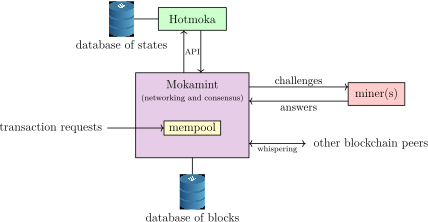
Fig. 7.2 shows the architecture of a Hotmoka node running on top of Mokamint. As you can see, Mokamint is taking care of networking and consensus and keeps the actual blockchain inside its own database. It takes part in mining new blocks through one or more miners. Miners are not necessarily local, that is, providing themselves support for mining. They can also be remote miners, that can be imagined as plugs to which external miners can connect to help the Mokamint node create new node, in exchange of a part of the earned coins. Moreover, each Mokamint node is a peer connected to other Mokamint peers, from which it can receive blocks through whispering. Users can send transaction requests to a Mokamint node: initially, they will be stored in a temporary area called mempool, from where they get eventually selected for inclusion in a block. Hotmoka is a separate component that runs transactions inside its database of states. This database is where Java objects, including accounts, are stored.
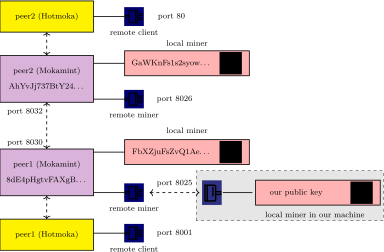
Fig. 7.3 shows the network architecture of a couple of Hotmoka nodes based on Mokamint, that are two peers of the same blockchain. The two Mokamint instantiations communicate between each other, in order to exchange blocks and synchronize their copy of the blockchain. Each Mokamint instantiation runs an instance of Hotmoka, that specifies the semantics of the transactions that can be executed on the blockchain. Each peer exports the node interface (Fig. 8.1), respectively, in this example, at port 80 and 8001. Remote clients, such as moka or Mokito, can connect to such ports and run transactions on the nodes, that will be automatically executed in all peers. Fig. 7.3 shows that each peer runs a local miner, that is, a software tool that finds nonces on disk in order to create the next blocks. It is well possible to have peers without any miner, in which case they just synchronize their copy of the blockchain but do not contribute new blocks. However, for simplicity, our docker images will always provide a local miner to a node. As the same figure shows, some peer might allow the connection of remote miners, that is, miners, identical to the local ones, but running as a remote network service. This allows peers to exploit the willingness of remote users to provide mining power to them by just plugging remote miners, without running a full node. If such remote miners contribute to the creation of new blocks, the prize for this creation will be shared between the peer and the remote miners.
7.2.1 Interacting with a Hotmoka node based on Mokamint
The software components of Fig. 7.2 are normally exposed through some IP ports, so that remote users can interact with them. Interaction with Hotmoka is possible through the moka command-line utility. Interaction with Mokamint’s peer and miner is possible through a few utilities of Mokamint itself:
-
• moka allows interaction with any Hotmoka node, independently from the underlying engine (Mokamint or Tendermint);
-
• mokamint-node allows one to interact with the Mokamint node;
-
• mokamint-miner allows one to interact with the miners of a Mokamint node;
-
• mokamint-application allows one to interact with the application of a Mokamint node, including Hotmoka.
While mokamint-application implements very generic operations, valid for all applications running on top of Mokamint, moka implements operations specific to Hotmoka only.
Let us start by using some of these utilities with the Mokamint-based main network maresia of Hotmoka. Fig. 1.1 reports the endpoints of a node of that network: Hotmoka node, Mokamint node and a remote miner of that node.
First of all, you need to enter the docker container, where all needed utilities are already installed:
docker run -it --rm hotmoka/mokamint-node:1.12.3 /bin/bash
You should see the prompt of docker now, something like hotmoka@d8bf8010d847: $. The following commands must be executed inside that running container.
The first command lets us see which are the peers known by a node:
mokamint-node peers ls --uri=ws://lipari.hotmoka.io:8030
Note that the command above is talking to Mokamint, not to Hotmoka: it is Mokamint that takes care of networking. Moreover, the command is run inside a docker container, so that you do not need to install anything in your machine. Later we will see how to run it, directly, in your machine. In any case, the output will be something like:
           URI points status
ws://157.90.103.251:8032 1000 connected
ws://84.32.104.142:8030 1000 connected
 ws://84.32.9.124:8030 1000 connected
 ws://84.32.9.193:8030 1000 connected
 ws://88.216.93.12:8030 1000 connected
These are the peers connected to node ws://lipari.hotmoka.io:8030 of the main network. You can try to replace the URI in the command with that of one of such peers, to see its peers.
Let us check which miners are connected to ws://lipari.hotmoka.io:8030:
mokamint-node miners ls --uri=ws://lipari.hotmoka.io:8030
The output tells us that there are two miners: a local and a remote one:
                 UUID points description
36b8fb41-4cb3-4db2-a27c-e82de95de767 1000 a remote miner published at ws://localhost:8025, with 0 open sessions
5ecbbc5e-7058-444e-bdf3-0c735bd4364e 1000 a local miner with 1 plot and up to 300000 nonces
The local miner is working in the same machine of the Mokamint node, connected directly to it. The remote miner, instead, is just a plug, listening to port  : any external miner can connect to that port and help peer ws://lipari.hotmoka.io:8030 to create new blocks. Whenever this help actually leads to
the creation of a new block, the reward for that block will be split between the helper and the node at ws://lipari.hotmoka.io:8030. We will show soon how to
start our own miner that helps an existing Mokamint node.
: any external miner can connect to that port and help peer ws://lipari.hotmoka.io:8030 to create new blocks. Whenever this help actually leads to
the creation of a new block, the reward for that block will be split between the helper and the node at ws://lipari.hotmoka.io:8030. We will show soon how to
start our own miner that helps an existing Mokamint node.
Let us query the configuration of the Mokamint node now:
mokamint-node config show --uri=ws://lipari.hotmoka.io:8030
The output reports all consensus parameters of Mokamint. They are the same for all nodes belonging to the same network maresia:
# This is a TOML config file for Mokamint nodes.
# For more information about TOML, see https://github.com/toml-lang/toml
# For more information about Mokamint, see https://www.mokamint.io


## Consensus parameters


# the chain identifier of the blockchain
chain_id = "maresia"


# the hashing algorithm used for the deadlines and hence for the plot files of the miners
hashing_for_deadlines = "shabal256"


# the hashing algorithm used for the computation of the new generation and scoop number from the previous block
hashing_for_generations = "sha256"


# the hashing algorithm used for the blocks of the blockchain
hashing_for_blocks = "sha256"


# the hashing algorithm used for the requests of the blockchain
hashing_for_requests = "sha256"


# the signature algorithm that nodes use to sign the blocks
signature_for_blocks = "ed25519"


# the signature algorithm that miners use to sign the deadlines
signature_for_deadlines = "ed25519"


# time, in milliseconds, aimed between the creation of a block and the creation of a next block
target_block_creation_time = 20000


# the maximal size, in bytes, of a block's requests table
max_block_size = 1000000


# the maximal size, in bytes, of a request
max_request_size = 500000


# the rapidity of changes of the acceleration for the block creation time
# between 0 (no change) and 100,000 (maximally fast change)
oblivion = 20000
Among the data reported above, note the expected chain id of the main network (maresia) and the average time between two successive blocks ( milliseconds, i.e.,
  seconds). This is an average because Mokamint has probabilistic finality.
We can list the last five blocks of the blockchain:
mokamint-node chain ls 5 --uri=ws://lipari.hotmoka.io:8030
The output, for each of the last five blocks, reports block’s hash and time of creation. Moreover, each block is associated with two public keys, for the Mokamint node and for the miner that created the block and shared the reward for its creation:
                                 block hash (sha256) created (UTC) node's public key (ed25519, base58) miner's public key (ed25519, base58)
347348: 51282da0154a9e96e56cdb0e7a3f2d4b7e77c34218bdde615764782434cbaf64 2026-06-10 15:57:56 3WqEZMgTHqbnAip8pKUjPSQbKBc3NGx57h7jg2upKsJT 5Z5mWpvHTzwKaEe86B8Z61jiJNp4grJk6CceiyxLQHUD
347347: 062ab62f835eaa01e9b4d37c7a5b5d7843b0ec6881a87ed3ef5135836531c74e 2026-06-10 15:57:43 31gaeUkCVZ1Yqfrcpezbhoe9ujcuFjrQCGiBkGLo6tzo CfYrbn2V2RErCXUmC9wWZ53E3DQSzomKC2Xv5UZF8YR7
347346: 3b6e514c8ff950e7625a64260936fa21059159de0ebc06ee5077cd9bed9212da 2026-06-10 15:57:17 31gaeUkCVZ1Yqfrcpezbhoe9ujcuFjrQCGiBkGLo6tzo CfYrbn2V2RErCXUmC9wWZ53E3DQSzomKC2Xv5UZF8YR7
347345: 531d9b97a26b1837714ed3a48d545c019eb3c9848873337340fa9593a120ceba 2026-06-10 15:57:10 3WqEZMgTHqbnAip8pKUjPSQbKBc3NGx57h7jg2upKsJT 5Z5mWpvHTzwKaEe86B8Z61jiJNp4grJk6CceiyxLQHUD
347344: 2e2a96c0a6729ac454d45ff5242fc1b75636549e23344a5a505369400573c013 2026-06-10 15:56:50 tQ62v6f9ELMpy3AjV1rzMqaxdicf92STwU7RKYYcmWr 9CFp6HmN8s8PXpvoRyUxiNDdCBoRAidArYtHCRBk8HEr
It is also possible to have a detailed description of a block such as, for instance, the head of the blockchain:
mokamint-node chain show head --full --uri=ws://lipari.hotmoka.io:8030
Among the technical information contained in the block, it is possible to recognize the value of the deadline, which is inversely proportional to the mining power of the blockchain as a whole, the state of the application (in this network: of Hotmoka) reached at the end of this block and the user requests included and executed in the block, if any:
* creation date and time UTC: 2026-06-10T15:58:01.902555534
* hash: fde9ce1ce1344dd0b53c0aaff519f80547b4a4ca1afb5c29e5fda8406510c89c (sha256)
* height: 347349
* power: 15651588931216
* total waiting time: 7001854771 ms
* weighted waiting time: 14954 ms (target is 20000 ms)
* next generation signature: 69c54ff506430022d623f63c16c8f2f65ae006ce1e3f57db8772fdf806318ab4 (sha256)
* acceleration: 96889085
* hash of previous block: 51282da0154a9e96e56cdb0e7a3f2d4b7e77c34218bdde615764782434cbaf64 (sha256)
* deadline:
  * prolog:
    * chain identifier: maresia
    * public key of the node that signed the block: 3WqEZMgTHqbnAip8pKUjPSQbKBc3NGx57h7jg2upKsJT (ed25519, base58)
    * public key of the miner that signed the deadline: 5Z5mWpvHTzwKaEe86B8Z61jiJNp4grJk6CceiyxLQHUD (ed25519, base58)
    * extra:
  * challenge:
    * scoopNumber: 1644
    * generation signature: 776af46088d29d16e7317d60372f82b07ff380fa51bffd17cc647c64634a758d (sha256)
  * nonce: 1631486
  * value: 00000082370d5c6046b3a206dbd519f0f17594a77e99100f7966ed0599e60b5d (shabal256)
  * extra:
* node's signature: 2b1a53235cb12402b0cff8f54311664137865b3f9d90eba5c4dbee2c7cc77c7fdea8265d710a7fc807ba0899256f1bc4a58f98182d698ce8bcb1f5c0dcecd80a (ed25519)
* final state id: c49a6b145aec9f5cbb2da7fc5106f94720bad328011e33bbddd0c2fcd9181d8571a69850a6d28a2eebec0fa4d9b71976d43de639858beffd7bda4f6aa7f28a76
* 0 requests
7.2.2 Start a remote miner for an existing node
The simplest scenario is that of a user who wants to provide mining power to an existing node of a blockchain based on Mokamint, such as ws://panarea.hotmoka.io:8001. This user does not want to run a full node of the blockchain, for instance because he does not want to perfom a long synchronization, nor hold a copy of the full blockchain in his machine, or maybe because his internet connection is not stable enough for running a full node, or just because he does not want to keep his machine always on, day and night. This user can contribute to the creation of new blocks, and earn crypto for this, by running a remote miner for an existing Hotmoka node based on Mokamint (Fig. 7.3), which can be done in two ways. The simplest is to run the Mokaminter Android app [15] on a mobile phone or tablet. This should be so simple that we do not really describe it here: just install the app and try to start mining. The other possibility is to mine on a local machine, and this is what we describe it here. In both cases, the miner is identified by a key pair, that is where the crypto earned for mining gets sent. The key is created automatically by Mokaminter, while it must be created manually when mining on a local machine.
There is a docker image for running a remote miner for Mokamint [14]. You first need to create a key pair that will identify you as a miner of the blockchain, then create a mining configuration, compatible with the Mokamint node that you are going to mine for, that includes a plot file for mining. The larger this plot file, the more likely it is that the miner will be selected for creating the next blocks of the blockchain and more coins will be earned by your miner, on average. For instance, in order to mine for the Mokamint node running the Hotmoka testnet and published at ws://panarea.hotmoka.io:8025, you start with the creation of the key pair that will identify you as a miner:
docker run --name temp -it mokamint/mokamint:1.7.3 mokamint-node keys create --name miner.pem --password; docker cp temp:/home/mokamint/miner.pem .; docker rm temp
Enter value for --password (the password that will be needed later to use the key pair): sun
The new key pair has been written into "miner.pem":
* public key: 9CCa3cZiZAYSDLrqntiTiTD7cUUS7J9AQz2ry5yxADeq (ed25519, base58)
* public key: ebv3XNCkzdENcVDQQzVxSPu3hk0Cqu0bkxUEDl78dxo= (ed25519, base64)
* Tendermint-like address: 1BA1E06AC23BC9BD163C25E3BE1E1C03C3319D0B
The command above asks for a password, that you will use to control the key pair, it creates the key pair in your local file system, named miner.pem, and prints its public key. Write down the password on paper, since it is not possible to recover it if lost. Save miner.pem in a safe place as well.
You can create the mining configuration now:
docker run --log-driver local --rm -it -e MINER_PUBLIC_SERVICE_URI=ws://panarea.hotmoka.io:8025 -e PUBLIC_KEY_MINER_BASE58=9CCa3cZiZAYSDLrqntiTiTD7cUUS7J9AQz2ry5yxADeq -e PLOT_SIZE="5000" -v miner_configuration:/home/mokamint/
miner_configuration mokamint/mokamint:1.7.3 config-miner
You can replace 5000 with any other positive number of nonces in order to increase or decrease the size of the plot file. Similarly, you can replace ws://panarea.hotmoka.io:8025 with ws://lipari.hotmoka.io:8025 if you want to mine for the mainnet of Hotmoka instead of the testnet.
After a mining configuration has been created, you can start mining:
docker run --log-driver local --name miner --rm -it -e MINER_PUBLIC_SERVICE_URI=ws://panarea.hotmoka.io:8025 -v miner_configuration:/home/mokamint/miner_configuration mokamint/mokamint:1.7.3 mine
You should see on the screen the flow of the logs of the miner. You can terminate the miner by pressing the ENTER key. Or you can leave the miner working in the background by pressing CTRL+p followed by CTRL-q, as always with docker.
You can stop an already running miner by simply stopping its docker container (docker stop miner). You can restart a stopped miner by running the above mine command again. You normally do not recreate the mining configuration when you restart a miner: its creation is a one-shot action. Nevertheless, you can recreate the configuration if, for instance, you want to change the size of the plot file. For that, stop your miner (if running) and just rerun the docker command for config-miner. Once the mining configuration has been recreated, you can restart your miner with mine.
If you reconfigure the miner by rerunning config-miner (for instance, to make its plot larger), it is convenient to reuse the same miner.pem, to avoid having many keys around and consolidate all your earnings on the same key.
Your miner will earn coins for the mining activity. You can check the current balance of the public key that identifies your miner, as follows:
docker run --rm -it mokamint/mokamint:1.7.3 mokamint-miner balance 9CCa3cZiZAYSDLrqntiTiTD7cUUS7J9AQz2ry5yxADeq --uri ws://panarea.hotmoka.io:8025
When the balance will finally be non-zero, you can bind the public key to the actual account that holds its crypto coins, with
moka keys bind miner.pem --password --uri=ws://panarea.hotmoka.io:8001
that requires you to have moka installed in your machine (Sec. 2.2.1) and to be run in the directory where you have saved the key pair file miner.pem. Note that the above command will fail if your miner has not yet created any block. Therefore, you must probably wait for some time before running moka keys bind. When successful, the miner.pem will be renamed into the address of the account inside the state of Hotmoka, something like 1475f3e87d099522…#0.pem.
7.2.3 Key pairs and accounts
The way Hotmoka deals with keys and accounts is different from that of other blockchains:
-
• a key pair is the private key/public key pair that can be used to identify a miner, or a node, or to control an account. It is uniquely identified by a .pem file and its associated password (if any). Equivalently, it is uniquely identified by
 words and (maybe) a password. This means that you can move a key pair by simply copying its .pem around across machines, or you can export the .pem file into its words (moka keys export file.pem) and import it elsewhere from those words (moka keys import <12 space-separated words here> --name file.pem);
-
• an account is an actual Java object in the state of Hotmoka: it has a public key and can be controlled with a key pair matching that public key. It follows that more Java account objects can be controlled with the same key pair, if they all use the same public key: they will have distinct identities and will keep different crypto amounts, but they can be controlled with the same key pair. An account is needed only inside Hotmoka, it is never used by Mokamint or Tendermint. Namely, you need an account if you want to send crypto across accounts or, in general, if you want to run a Hotmoka transaction (install a smart contract and run its methods).
The natural question, now, is how we can identify an account: we need its key pair (a .pem file) and the address where the account object is allocated in the state of Hotmoka (something like 1475f3e87d099522…#0). Hotmoka’s solution is to identify an account with a .pem file whose name is exactly the address of the account, for instance: 1475f3e87d099522…#0.pem.
It turns out that key pairs, if used to identify a miner, a node or the gamete of the network (Sec. 7.2.5), automatically have a corresponding account that can be used to manipulate the earned crypto. In order to find out which is that account, we can use the moka keys bind comand, as seen above:
moka keys bind miner.pem --password --uri=ws://panarea.hotmoka.io:8001
(replace the URI above with ws://lipari.hotmoka.io:8001 if you are mining for the mainnet of Hotmoka). This will rename
miner.pem into something like 1475f3e87d099522…#0.pem, that you can use to take control of the crypto earned for mining, send it to other users or spend it to install and run smart contracts. If
you want to be able to control the account on another machine, you can just copy this 1475f3e87d099522…#0.pem file to the other machine, or you can export the account into  words (moka accounts export 1475f3e87d099522…#0) and import it in the other machine (moka accounts import <36 space-separated words here>).
Information about balance and public key of an account is public and can be accessed without holding its controlling .pem file:
moka accounts show 1475f3e87d09952279f771b53c061f8136576dcf5c1e6cb56e84eef7bcefc95e#0 --uri ws://panarea.hotmoka.io:8001
Account: 1475f3e87d09952279f771b53c061f8136576dcf5c1e6cb56e84eef7bcefc95e#0
* balance: 9999999999999943999990923077
* public key: 5qfQgbxMEewt7S2mhU5vHtygTTuQtGYz5hfazzzY8aEA (ed25519, base58)
* public key: R+YOEp9POHDlIJAXY8sKLMLl1D3+Wt1ZXaz8BUhDOQc= (ed25519, base64)
Of course, you need the 1475f3e87d099522…#0.pem file in your local machine if you want to use the crypto of that account (and you must know its password, if any). For instance, if you want to move  coins from account 1475f3e87d099522…#0 to account c7c63df58433268f…#0, you can write
moka accounts send 1475f3e87d09952279f771b53c061f8136576dcf5c1e6cb56e84eef7bcefc95e#0 1000 c7c63df58433268f3f87ad22bef279eef9d88d1501b4a49d75802805acc7b1fc#0 --uri ws://panarea.hotmoka.io:8001 --password-of-payer
That requires that you can control the sender (you need 1475f3e87d099522…#0.pem), but not that you control the receiver (you do not need c7c63df58433268f…#0.pem).
7.2.4 Start a node of an existing blockchain
This is the most typical situation. Namely, this occurs if you want to join an existing blockchain, with a node that mines new blocks and receives blocks created by the other peers. This docker image provides a script for this situation. This script includes the creation of a local miner as well, or otherwise your node would not be able to mine new blocks. Because of this, the scripts deal with two key pairs: the former identifies the node, and is kept inside the machine running the script, and the latter identifies the miner, can be stored elsewhere and only its public key is needed here.
The process is consequently split in two:
-
• configure the node (config-clone);
-
• run the node (go).
Each phase is the execution of a script inside this docker image. The script config-clone is meant to be run only once, while go can be run, stopped and run again, whenever you want to start, stop and restart a node. You can also pause it and unpause it. The reason for splitting the process in two scripts is that it allows one to manually edit the configuration created by config-clone before running the node, although we will not show this here. Moreover, having distinct scripts allows go to be stopped and run again, repeatedly, whenever you want to stop and restart a node.
The following instructions assume that you have a reliable internet connection. If the connection is too slow, or flickering, or if it disconnects for some time, the synchronization of the node will likely fail. In that case, stop and restart go later, hoping to complete the synchronization, eventually. Please consider that the synchronization of the node requires to download all the history of the blockchain that you are joining, which might take time (hours, days, even weeks, depending on the age of the blockchain and the quality of the internet connection).
Configure the node (config-clone)
The config-clone script creates the configuration directory of a node that joins an existing Hotmoka blockchain based on the Mokamint proof of space engine. For that, you must specify the URI of a node of this blockchain, from where the configuration information will be fetched. This is important, since all nodes of the same blockchain must have the same consensus parameters.
The first thing to do is to create a key pair for the miner of the new node that you want to start. You can do this as in Sec. 7.2.2, hence generating miner.pem.
You can then run the script that configures the node. Use for it the base58-encoded public key of the key pair that you have created above. Specify ws://panarea.hotmoka.io:8030 as the URI of a node of the blockchain to join. Specify the size of the plot file to use for the proof of space: the larger, the more blocks will be created by your node, but also more disk space will be allocated for mining. We will use two volumes: chain will contain the actual blockchain data and hotmoka_mokamint will contain the configuration information created for the node. By using volumes, we can share that information across successive invocations of docker:
docker run -it --rm -e PUBLIC_KEY_MINER_BASE58=9CCa3cZiZAYSDLrqntiTiTD7cUUS7J9AQz2ry5yxADeq -e MOKAMINT_PUBLIC_SERVICE_URI=ws://panarea.hotmoka.io:8030 -e PLOT_SIZE=4000 -v chain:/home/hotmoka/chain -v hotmoka_mokamint:/home/hotmoka/
hotmoka_mokamint hotmoka/mokamint-node:1.12.3 config-clone
Note that the script above will create another key pair (and ask you about the relative password), that will be kept inside the container. This key pair identifies the node and will be used to sign the blocks that the node will create. Because of this, that key must remain inside the container.
Run the node (go)
After configuring the node, you can run it with the go script:
docker run -it --log-driver local --rm --name hotmoka -p 8001:8001 -p 8025:8025 -p 8030:8030 -p 127.0.0.1:8031:8031 -v chain:/home/hotmoka/chain -v hotmoka_mokamint:/home/hotmoka/hotmoka_mokamint hotmoka/mokamint-node:1.12.3 go
The command above will start a node of the same blockchain of ws://panarea.hotmoka.io:8001, that allows connections to the ports:
- 8001:
-
this is the port where the Hotmoka node is published by default; it can be used to contact the node, install and run smart contracts;
- 8025:
-
this is the port where mining services can connect by default; mining services help your node produce new blocks; note that this requires to open a remote miner in your node, listening at port 8025 (mokamint-node miners add);
- 8030:
-
this is the port where Mokamint can be reached for public queries, by default;
- 8031:
-
this is the port where Mokamint can be reached for restricted operations, by default; note the we have restricted its access to localhost only, since we do not want our Mokamint node to be freely reconfigured remotely.
After the command above, you should see that the node will start up and begin synchronizing from ws://panarea.hotmoka.io:8030. This will take some time (hours, days, weeks…) depending on the age of the cloned blockchain and on the speed of your internet connection. You can leave the container in the backrground by entering CTRL+p, CTRL+q, as always in docker.
You can then monitor the progress of the synchronization by entering the running container and executing the mokamint-node command:
docker exec -it hotmoka /bin/bash
and then inside the container:
hotmoka@e41eda9afd3b: mokamint-node chain ls 10
You can also see the manifest of the node, that is identical to that of any other node of the joined blockchain:
hotmoka@e41eda9afd3b: moka nodes manifest show
Remember that you can always check the logs of a running docker container, for instance with:
docker logs -f hotmoka
You can also copy the key pair of the node outside the container, to keep it in a safe place:
docker cp hotmoka:/home/hotmoka/hotmoka_mokamint/node.pem .
We suggest that you always keep a copy of node.pem and miner.pem in a safe place and write down their passwords, if any.
Finally, you can pause, unpause and stop the node with the usual Docker commands docker pause hotmoka, docker unpause hotmoka and docker stop hotmoka. After a stop, you can execute the go script again if you want to resume the node.
If you want to reconfigure the node, for instance because you want to resize its plot file, you can stop the node (docker stop hotmoka), rerun the config-clone script and then the go script. Note however that, by default, config-clone will create a new node.pem key pair to identify the node and will erase the directory where the blockchain is kept. Therefore, you will end up with two node key pairs (the old one and the new one), while it would be normally easier to recycle the old key pair and consolidate all earnings in that same key pair. Moreover, the chain directory will have to be downloaded again, from scratch, with a long synchronization, when go will be invoked. To avoid all these problems, we suggest that, when rerunning the config-clone script, you set the environment variables -e KEEP_NODE_PEM=true and -e KEEP_CHAIN=true in the docker invocation.
7.2.5 Start the first node of a new blockchain
This situation is much rarer. It occurs when you want to start a brand new blockchain from scratch, by minting its genesis block and initializing its store. Later, other nodes can join the new blockchain with the technique described in Sec. 7.2.4.
The docker image of Hotmoka provides scripts for starting a brand new blockchain. These scripts include the creation of a local miner as well, or otherwise your node would not be able to mine new blocks. Because of this, the scripts deal with two key pairs: the first identifies the node, and is kept inside the machine running the script, and the second identifies the miner, can be stored elsewhere and only its public key is needed for starting the node.
The process is consequently split in three:
-
• configure the node (config-new)
-
• initialize the node (init)
-
• run the node (go)
Each phase is the execution of a script inside the docker image. The scripts config-new and init are meant to be run only once, while go can be run, stopped and run again, whenever you want to start or stop a node. You can also pause it and unpause it. The reason for splitting the process in three scripts is that it allows one to manually edit the configuration created by config-new before initializing and running the node, although we will not show this here. Moreover, having distinct scripts allows go to be stopped and run again, repeatedly, whenever you want to stop and restart a node.
Configure the node (config-new)
The configuration requires the creation of a brand new key pair that will identify the miner of the node. You can do this as in Sec. 7.2.2, hence generating miner.pem. Moreover, you will need another key pair, for the gamete account. This is an account of Hotmoka that holds all cryptocurrency minted at start-up (if any). It can also be used as faucet of the node, if your node allows a free faucet. In any case, you need a key pair for the gamete account as well. Therefore, follow the instructions in Sec. 7.2.2 and create gamete.pem as well:
docker run --name temp -it hotmoka/mokamint-node:1.12.3 moka keys create --name gamete.pem --password; docker cp temp:/home/hotmoka/gamete.pem .; docker rm temp
Enter value for --password (the password that will be needed later to use the key pair): moon
The new key pair has been written into "gamete.pem":
* public key: 8C2iFK1J3Ugzaxho6yeJLDvis9tXCh6GurPohTbmRSiN (ed25519, base58)
* public key: atUh1xkGBC5MeSkbDK7rL9527PidR/mFxZHbB0PLqCM= (ed25519, base64)
* Tendermint-like address: FBCABB238F12C2480919F9755E002271B57CA2BF
You can now configure the node, by specifying the public key of the miner and that of the gamete:
docker run -it --rm -e PUBLIC_KEY_MINER_BASE58=9CCa3cZiZAYSDLrqntiTiTD7cUUS7J9AQz2ry5yxADeq -e PUBLIC_KEY_GAMETE_BASE64="atUh1xkGBC5MeSkbDK7rL9527PidR/mFxZHbB0PLqCM=" -e PLOT_SIZE=5000 -e CHAIN_ID=whale -e TARGET_BLOCK_CREATION_TIME=10000
-v chain:/home/hotmoka/chain -v hotmoka_mokamint:/home/hotmoka/hotmoka_mokamint hotmoka/mokamint-node:1.12.3 config-new
Note that the public key of the miner is reported in base58, while that of the gamete is reported in base64, currently. The target block creation time, in milliseconds, is the average time between the creation of two successive blocks. The chain identifier identifies the new network and must be used, for instance, in the transaction requests sent to the Hotmoka nodes of the network. The script above will prompt for the password of the key pair used for signing the new blocks, that it creates. Enter your chosen password or leave it blank. The script will configure the node and create a plot file for its miner.
Initialize the node (init)
The initialization of the node consists in the execution of a few initial transactions that create the genesis block, the manifest and the gas station of the node. You can do this with:
docker run -it --rm -v chain:/home/hotmoka/chain -v hotmoka_mokamint:/home/hotmoka/hotmoka_mokamint hotmoka/mokamint-node:1.12.3 init
This will take a few seconds. You should see the logs of the executed transactions, until the script terminates.
Run the node (go)
Once the node has been configured and initialized, you can run it. Follow for this the instructions reported in Sec. 7.2.4 for the go script.
7.2.6 Migrate a node
What identifies a node is its key pair, used to sign the blocks that it creates. If you ran either config-clone or config-new, these scripts will have created a node.pem key pair file inside the configuration directory of the docker container, to identify the node. It might happen that you want to migrate that node, i.e., you might want to move it into another machine, for instance because it has a larger disk space or a better internet connection. In order to keep the identity of the node, you need to recycle the same node.pem that was used in the previous machine. But running config-clone in the new machine will created a new node.pem and you will end up with two key pairs, that of the old node and that of the new node. This is typically problematic, since you will have some coins collected while mining with the old key pair and other coins collected while mining with the new key pair. Instead, you normally want to keep the old node.pem and consolidate all earnings into that same key pair.
Assume then that you have copied the key pair node.pem of the old node in your working directory of the new machine. Remember that you can extract it from the old node, running in the old machine, with
docker cp hotmoka:/home/hotmoka/hotmoka_mokamint/node.pem .
In the new machine, create the container, but do not start it yet:
docker create -it --rm --name hotmoka -e KEEP_NODE_PEM=true -e PUBLIC_KEY_MINER_BASE58=9CCa3cZiZAYSDLrqntiTiTD7cUUS7J9AQz2ry5yxADeq -e MOKAMINT_PUBLIC_SERVICE_URI=ws://panarea.hotmoka.io:8030 -e PLOT_SIZE=4000 -v chain:/home/hotmoka/chain
-v hotmoka_mokamint:/home/hotmoka/hotmoka_mokamint hotmoka/mokamint-node:1.12.3 config-clone
Note that we have given a name to the container (hotmoka) and that we asked to keep the existing node.pem key pair. Moreover, we are always using the same public key for the local miner of the new node as well, so that we also consolidate all earnings for the local miner. After creating the container in the new machine, let us inject the desired node.pem inside it:
docker cp node.pem hotmoka:/home/hotmoka/hotmoka_mokamint/
We can start the container hotmoka now: it will use the injected node.pem, instead of creating a new one, since we used -e KEEP_NODE_PEM=true when we created that container above:
docker start --attach -i hotmoka
This will start the container and create the configuration. When it will complete, you can run the migrated node, in the new machine, with the go script. It will perform an initial synchronization and then start mining, with the same identity as the old node.
We create the key pair inside a docker container above and then export it outside. Thus is because, in this chapter, we perform everything with the docker tool only. You can of course do the same by invoking moka keys create directly if you have installed on your local machine (Sec. 2.2.1).